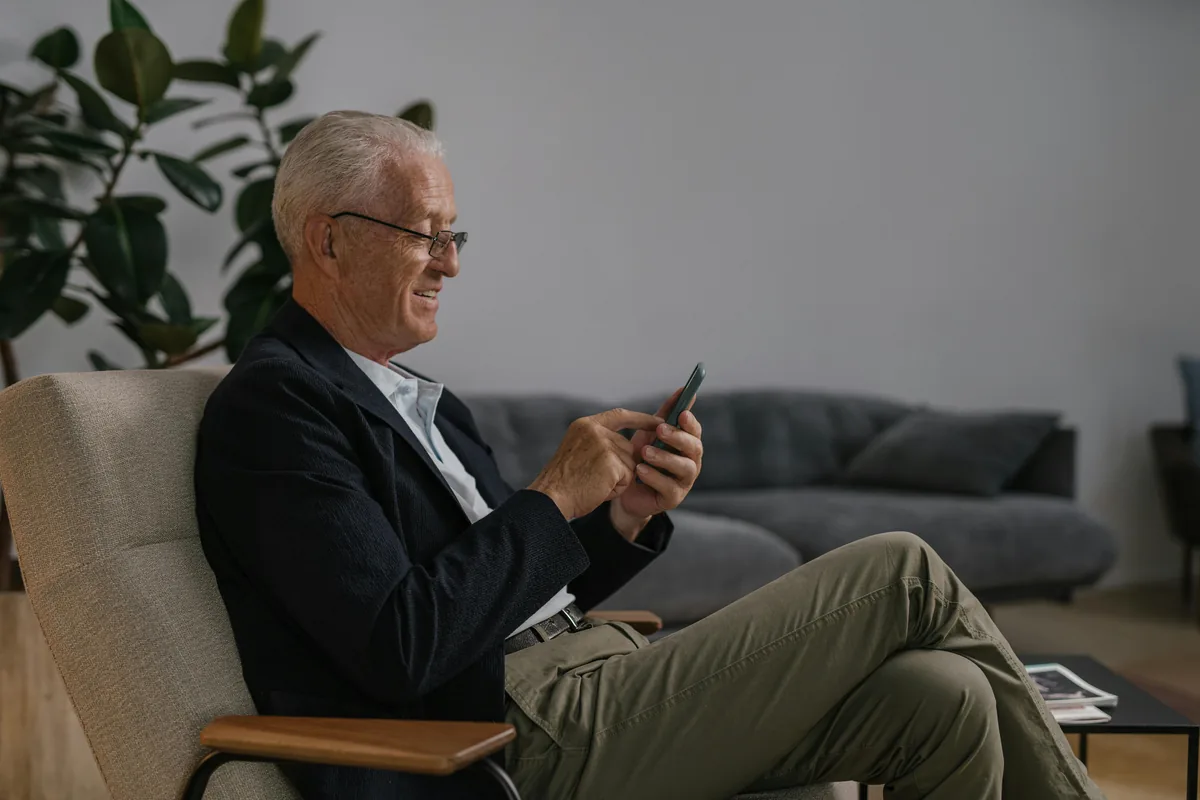
How to Book a GP Appointment Online Using the NHS App
2 June 2026 by Luis Salas
The 8am phone queue to book a GP appointment is one of the most frustrating parts of using the NHS. You call as soon as the lines open, wait on hold, and are told all appointments for the day are taken. The NHS App was built to fix this. You can request or book appointments from your phone at any time, order repeat prescriptions without calling, and see your test results without waiting for a letter. 💚
This guide walks you through how to download the NHS App, set it up, and use it for the things that matter most.
1. What the NHS App can do for you
The NHS App is the official app from NHS England, available free on iPhone and Android. It connects directly to your GP surgery and your NHS records, giving you access to services that previously required a phone call or visit.
With the NHS App you can:
- Request or book GP appointments online
- Cancel appointments you no longer need
- Order repeat prescriptions and choose where to collect them
- View your GP health record, including medications, allergies, and test results
- See your vaccination history
- Manage your organ donation decision
Not every GP surgery has enabled all of these features. Most have at least appointment requests and prescription ordering. The app shows you which services your surgery offers.
Simple action: Download the NHS App from the App Store (iPhone) or Google Play (Android), or go to nhs.uk on any browser. The web version works just as well if you prefer not to use a phone app.
2. How to set up the NHS App
Setting up the app takes about ten minutes the first time.
Open the app and tap "Continue". You will be asked to create an NHS login using your email address and a password. Once you have verified your email, the app will ask you to prove your identity. Most people do this by answering questions about their medical records (a quick online check) or by scanning their passport or driving licence using the phone camera.
Once your identity is confirmed, you link the app to your GP surgery by searching for your surgery by name or postcode. If your surgery is registered with the NHS App, you will be connected automatically.
If the identity verification step does not work first time, you can visit your GP surgery in person with a photo ID and ask them to link your NHS number to your NHS login manually.
Simple action: Have your NHS number to hand when setting up. You can find it on any NHS letter, prescription, or by calling your GP surgery and asking.
💡 Tip: If you wear reading glasses, set the text size on your phone to large before you start. On an iPhone go to Settings → Display and Brightness → Text Size. On Android go to Settings → Accessibility → Font Size.
3. How to book a GP appointment
Once the app is set up and linked to your surgery, booking an appointment takes two minutes.
Open the app and tap "Appointments". You will see options based on what your surgery has enabled. This might be a live list of available slots to choose from, or a request form where you describe what you need and the surgery contacts you to arrange a time.
Some surgeries use the NHS App for routine and non-urgent appointments only, with urgent or same-day slots still handled by phone. The app will make clear what is available.
When you select an appointment, you can choose the type (telephone call, face to face, or video), the date and time, and whether you want a reminder sent to your phone.
Simple action: If you are not sure whether your surgery uses the NHS App for bookings, open the app after linking your surgery and go to "Appointments". If booking is enabled, you will see available options straight away.
4. Ordering repeat prescriptions
If you take regular medication, ordering repeat prescriptions through the app removes the need to call your surgery or visit in person.
Tap "Medicines" in the app to see your current repeat prescriptions. Select the items you need, choose your preferred pharmacy for collection, and confirm the request. Your surgery processes it and sends the prescription electronically to the pharmacy you chose.
Most requests are processed within two working days. You will receive a notification when the prescription is ready, and you can track its status in the app.
Example: A 70-year-old taking medication for blood pressure and cholesterol can order both repeat prescriptions through the app in under two minutes, choose their local pharmacy, and collect the medication two days later, without a single phone call to the surgery.
5. Viewing test results and your health record
Once your GP surgery has linked your records to the app, you can view your health information directly.
Tap "Health record" to see your GP summary, which includes current medications, allergies and reactions, and any conditions your GP has recorded. Test results, such as blood tests ordered by your GP, appear here when they are added to your record.
Some surgeries share results with brief notes from the GP. Others share results without commentary, in which case a follow-up call or appointment is the appropriate next step if you have questions.
Being able to see your own records is useful before appointments, when filling in forms, or when you need to share information with a specialist.
The NHS App does not replace calling your surgery for urgent matters or emergencies. For anything that cannot wait, call your GP or 111 as normal. For everything else, the app is a reliable tool once it is set up. 💛
Download the NHS App today at nhs.uk/nhs-app or from your phone's app store. For more guides on using technology with confidence, visit the Una guides or sign up to our newsletter.
For what the appointment itself involves, our guide to NHS Health Checks for over-60s explains what to expect. If you use other government services online, our guide to GOV.UK One Login covers the single sign-in, and our guide to the best apps for over-60s suggests what else is worth having on your phone.


Get More Guides Like This
Sign up to receive helpful guides and tips delivered to your inbox.
We'll send you helpful content, never spam.